
Schedule downloads and shut down when done in Aynite Download Manager
Queue what you want during the day, let Aynite Download Manager start it at night when the line is free, stop it in the morning, and shut the computer down, put it to sleep or hibernate it when the last file is done. The scheduler is one window, and the whole setup takes a minute.
Updated 14 October 2026. Applies to Aynite Download Manager 1.7.0.
Set start and stop times
Open the Scheduler
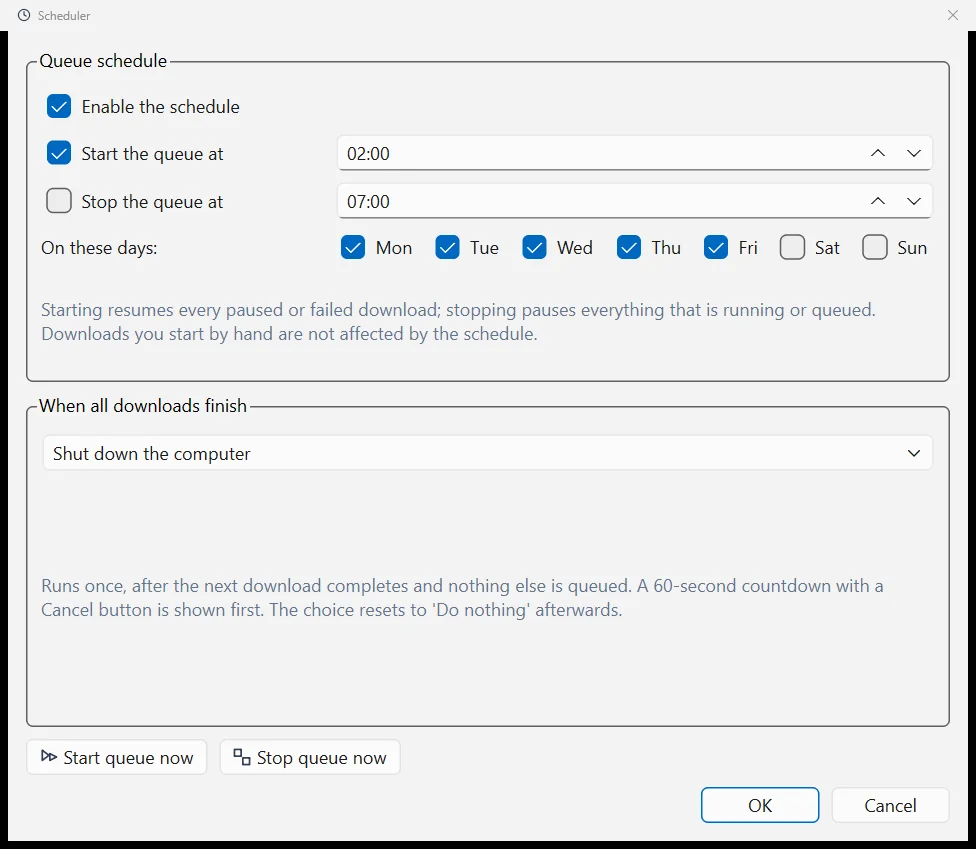
Click Scheduler in the toolbar. Tick Enable the schedule.
Set the start time
Tick the start time and enter it, for example 02:00. At that time ADM starts every queued download, up to the number it runs at once (three by default, changed in Options).
Set the stop time, if you want one
Tick the stop time and enter it, for example 07:00. At that time ADM pauses everything that is still running; it continues at the next start time.
Pick the days
Tick the days of the week the schedule applies to. Every day is ticked by default; untick the weekend if you want the line free then, or tick only the nights before a working day.
Shut down, sleep or hibernate when the queue finishes
Under When all downloads finish, choose Do nothing, Exit ADM, Put the computer to sleep, Hibernate the computer or Shut down the computer. ADM waits until every running and queued download has finished, shows a countdown so you can cancel, then performs the action. The action is armed when you pick it; it fires once the queue has drained after at least one download finished.
Downloads you start by hand
The schedule governs the queue, not you. A download you start yourself runs at once, whatever the time. The Scheduler window also has Start now and Stop now buttons for the whole queue, for the days you want to override the times.
Good combinations
- Night queue: start 02:00, stop 07:00, all days, action Shut down. Queue the large files in the evening and go to bed.
- Work hours: no start time, stop 09:00 and start 18:00, weekdays only, so nothing runs during video calls; add an overall speed limit for the rest.
- Playlists and torrents: queue them, set Hibernate as the action, and the PC is off when you come back. Torrents follow the schedule like everything else.
Questions
Can a download manager schedule downloads overnight?
Yes. In ADM, enable the schedule with a start time and, if you like, a stop time, pick the days, and queue what you want downloaded.
Will ADM shut the computer down even if something failed?
A failed download is not running or queued, so it does not hold the action back. Press Resume on it another time.
Can I cancel the shutdown?
Yes. ADM shows a countdown before the action; click Cancel in that window.
Does the schedule apply to live recordings?
A recording runs while the broadcast is live and you have not pressed Stop; the stop time pauses the queue, and a paused recording ends.
Get ADM
One installer with everything included. Install it, add the browser add-on when asked, and every link you copy or every video you hover is ready to download.
For Windows 10 and 11, Ubuntu, Linux Mint, Debian and other Linux distributions
Verify this file
The Windows installer's fingerprint (SHA-256), for anyone who wants to check the download is untouched:
0b419e24880befe63ef221cf18ad3130dfcaac854884c6de5b13af85854922cb